
Alerting for Wagon dwell times
Set up automatic notifications for wagon dwell times and train transitions
Feature Overview
This extension allows you to set up automatic notifications to alert you when:
- A wagon remains in an area for too long (e.g., over 48 hours)
- An expected train transition does not occur (e.g., no Gate-Out within 6 hours after Gate-In)
Accessing the Feature
Find the new notification source "Service life" in the Notification Settings app within myleo/dsc.
Setting Up an Alert
Step 1: Activate Notification Source
- Open the Notifications Settings app.
- Activate the notification source Service life.
- Confirm your selection with the Save Button.
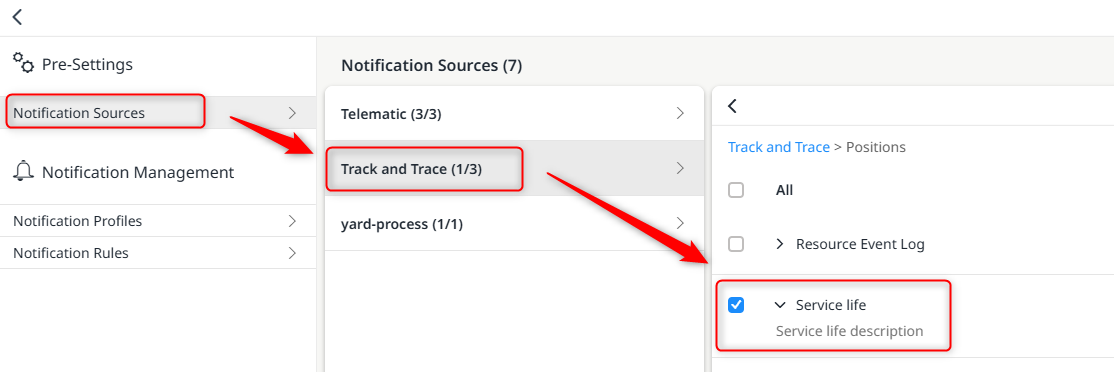
Step 2: Create Notification Rule
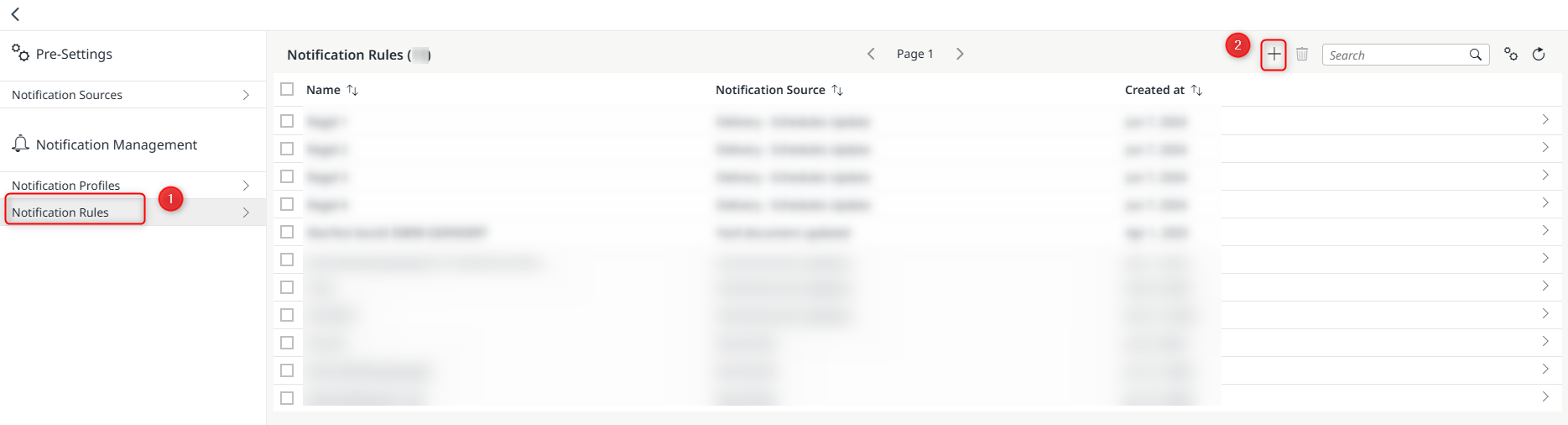
- Click on the Notification Rules tab and then on the Add Button.
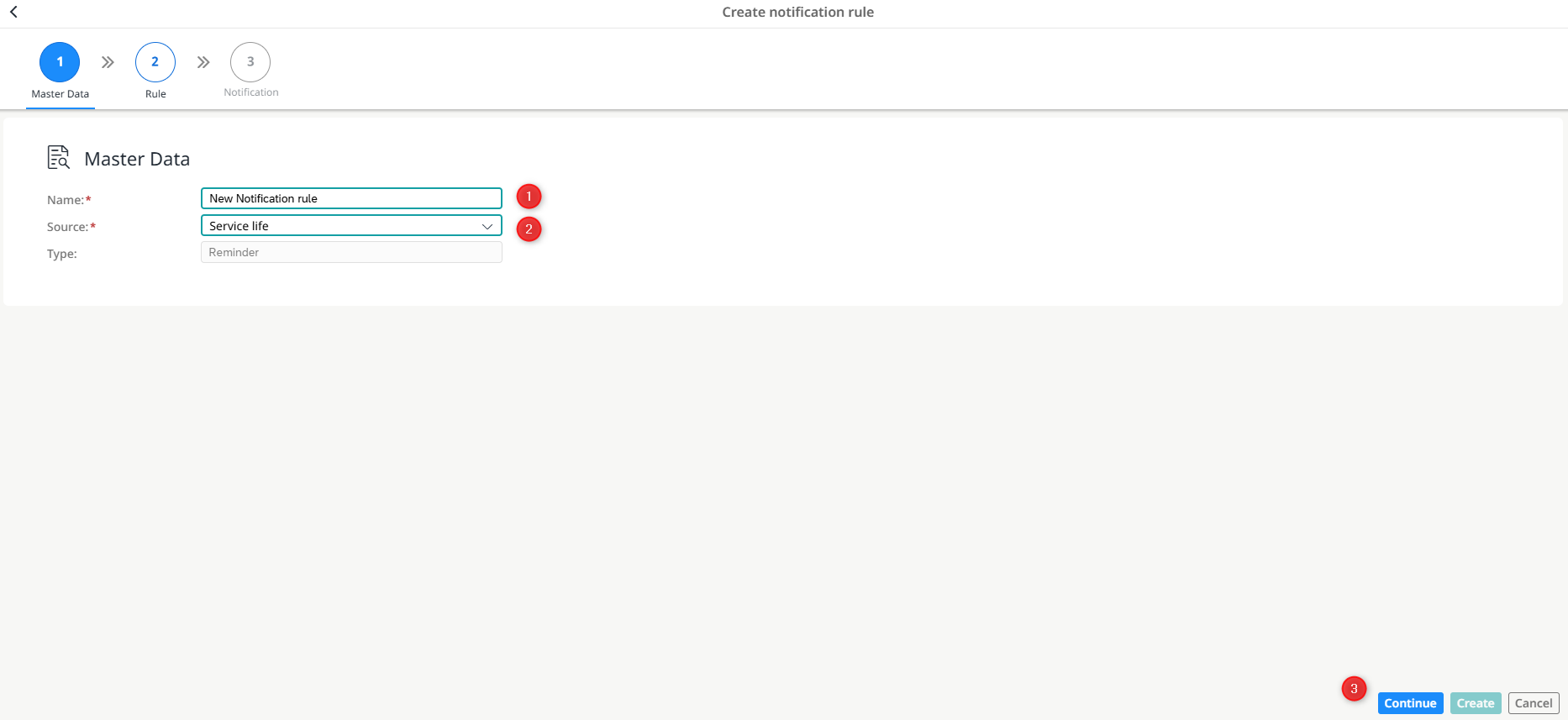
- Enter a suitable name for the notification rule and select the notification source Service life. Click Continue.
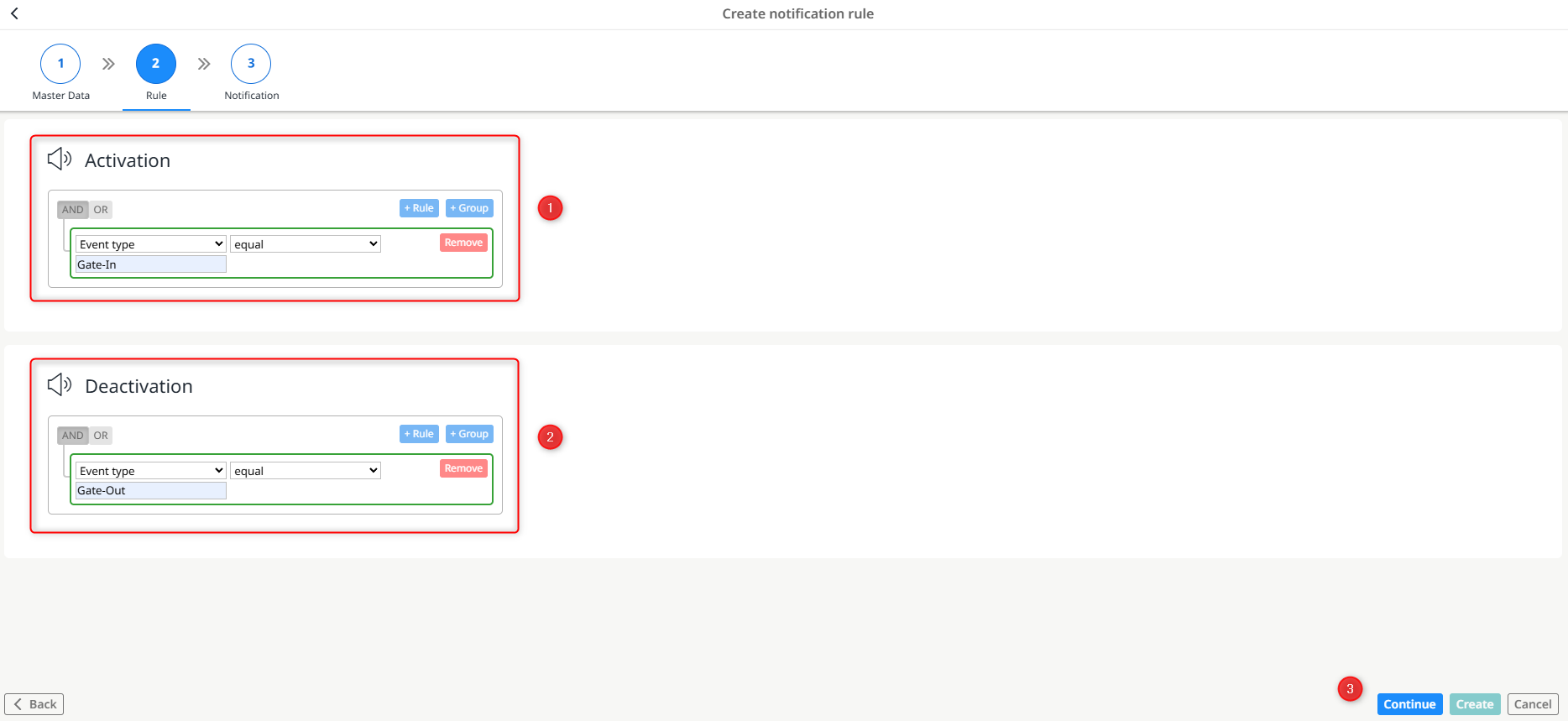
- Set the contents of the new notification rule with the following settings:
- Activation (When does the timer start?)
- Event Type: Gate-In
- Optional: Specific area (e.g., "North Marshalling Yard")
- Optional: Specific wagon number
- Optional: Specific wagon type
- Deactivation (When does the timer stop?)
- Event Type: Gate-Out
- Optional: Same area as selected in the activation condition
- Define the Time settings of the notification rule:
- Select an escalation level from the dropdown list
- Options include (Critical, Warning, Information)
- Reminder after (minutes): After how many minutes should the notification occur? (e.g., 2880 minutes = 48 hours)
- Click the Create Button to create the notification rule.
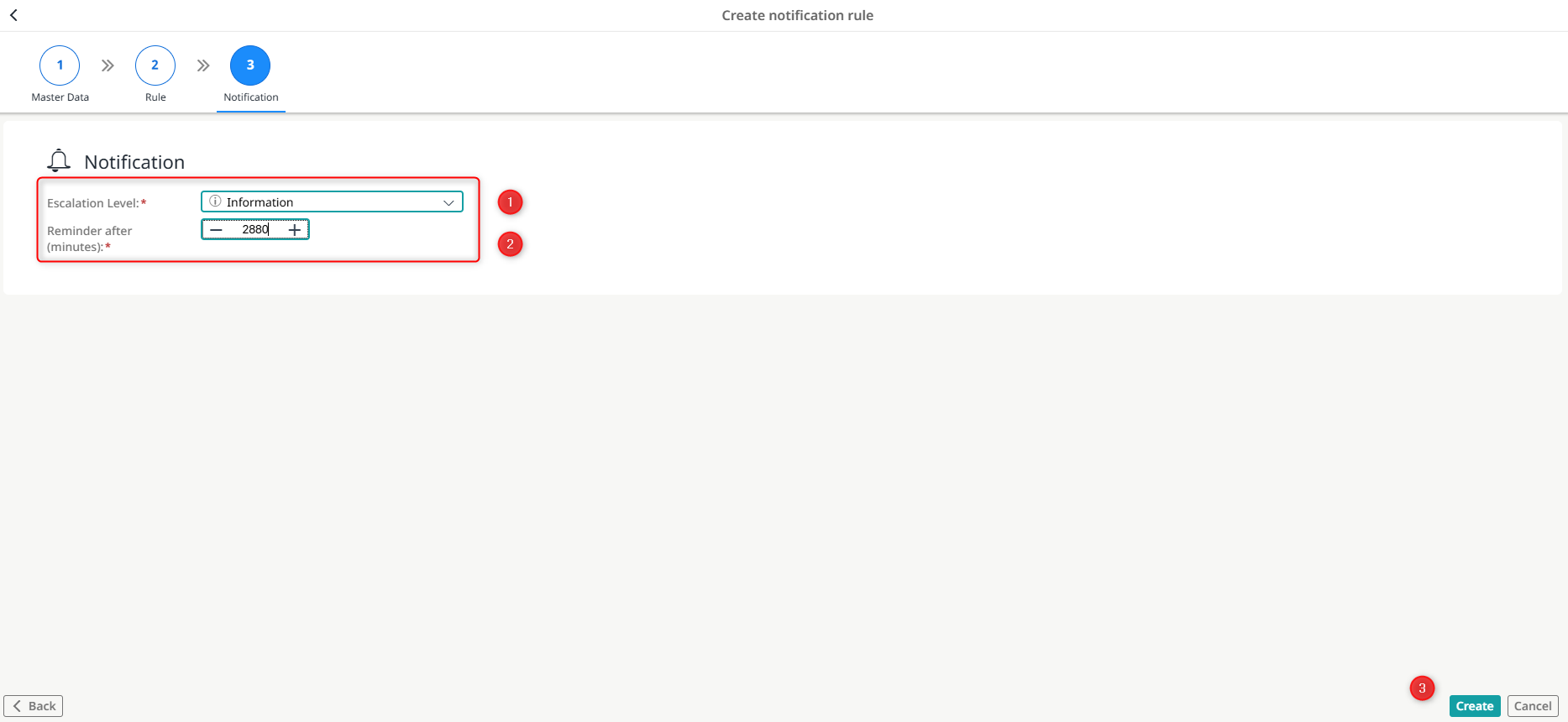
Step 3: Link Notification Profile
- Link the created notification rule with a notification profile to determine who receives the notifications.
- Click on the Notification Profiles tab and select the notification profile you want to link with the previously created notification rule.
- In the detail view of the notification profile, select the Notification Rules tab.
- Click the Add Button, and select a notification rule.
- Confirm the selection with the Save Button.
Result:
The notification rule has been linked with the notification profile.

Application Examples
Example 1: Monitoring dwell time in the marshalling yard
Goal:
- Notification if a wagon stays longer than 48 hours in the marshalling yard
Configuration
-
Activation: Gate-In in the area "marshalling yard"
-
Deactivation: Gate-Out from area "marshalling yard"
-
Duration: 2880 minutes (48 hours)
Result:
You receive a notification if a wagon has not exited 48 hours after entry.
Example 2: Monitoring specific wagon numbers
Goal:
- Notification only for specific wagons (e.g., "00 00 000 9 986-1")
Configuration
-
Activation: Gate-In + Wagon number = "00 00 000 9 986-1"
-
Deactivation: Gate-Out + Wagon number = "00 00 000 9 986-1"
-
Duration: 360 minutes (6 hours)
Result:
You receive a notification only for the specified wagon if it has not exited 6 hours after entry.
Example 3: Monitoring all wagons without specific filtering
Goal:
- Notification for all wagons regardless of area or wagon number
Configuration
-
Activation: Gate-In (without further filters)
-
Deactivation: Gate-Out (without further filters)
-
Duration: 1440 minutes (24 hours)
Result:
You receive a notification for each wagon if more than 24 hours pass between entry and exit.
Important Notes
How does the timer work?
Process
-
Start: The timer starts as soon as the activation condition is met (e.g., Gate-In)
-
Stop: The timer stops when the deactivation condition is met (e.g., Gate-Out)
-
Reset: If the same wagon enters the same area again, the timer starts over
What happens with multiple entries and exits?
Process
-
The timer resets with each new entry
-
The timer starts counting again each time
-
You only receive a notification if the wagon exceeds the set time without exiting
Example:
A wagon enters and exits the same area multiple times.
Area Logic
A timer activated by a Gate-In in area X is deactivated by a Gate-Out from the same area X.
This corresponds to physical logic:
- A vehicle can only leave an area if it has previously entered there.
Test Function
You can test your notification rule before using it in production:
- Open the created notification rule
- Click the Test Button to manually trigger the rule
You receive a test notification on all activated channels.
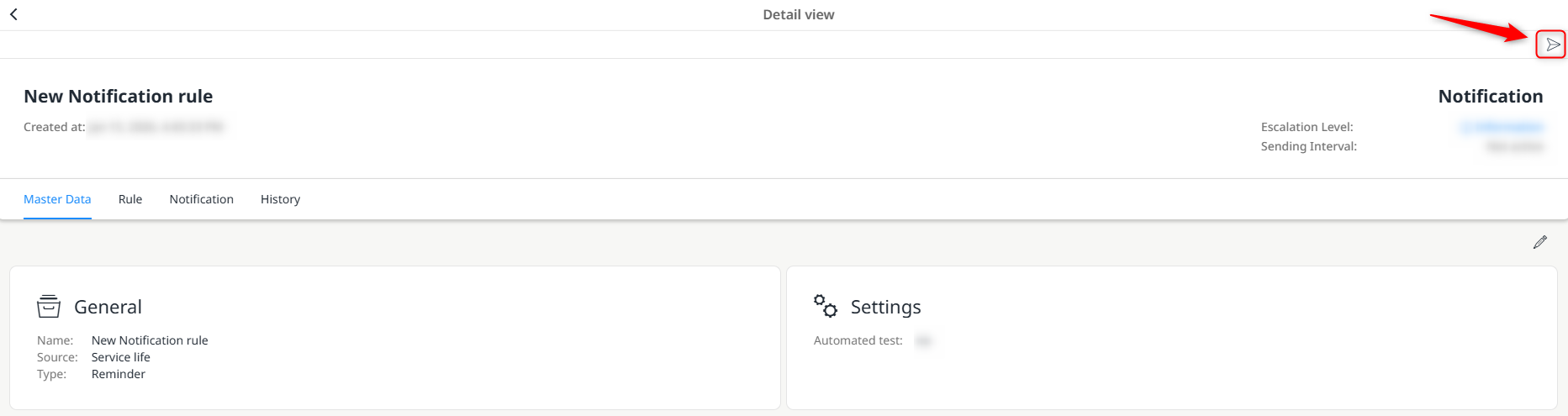
Button to test the notification rule
Notifications
What Information is included in the notification?
The notification includes the following information:
-
Wagon Number / Resource Identification
-
Area where the current wagon is located
-
Duration of the service life
-
Link to the detail view in myleo/dsc
What languages are available?
Notifications are available in:
-
German
-
English
The language is based on your personal settings.
History and Log
All triggered notifications can be viewed in the History within the detail view of a notification rule.
There you can see:
- When was the notification triggered?
- Which resource was affected?
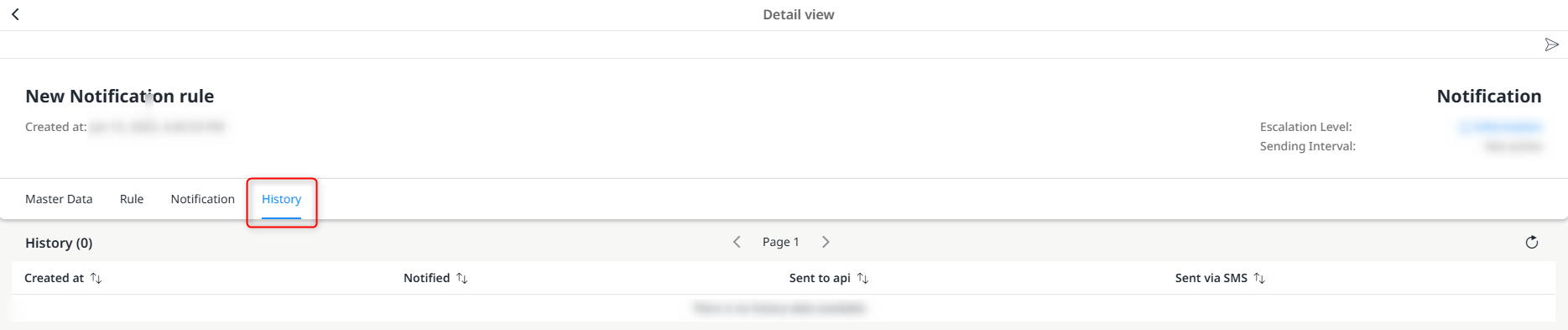
Overview of triggered notifications
Updated 9 months ago