
How can I set the cutoff time?
Cutoff time setting options
A cutoff time specifies until when a slot booking can be processed or when a booking must be available at the latest.
The cutoff time can be set either for a team within a resource or across teams in a resource.
If the cutoff time has been set both within an individual team and across teams within the associated resource, this has the higher priority.
Set cutoff time for a team within a resource
To set the cutoff time for a specific team, first click on the Slot Settings app.
Open the Slot Settings app
Then select the Resources section in the Slot Booking Administration menu on the left-hand side.
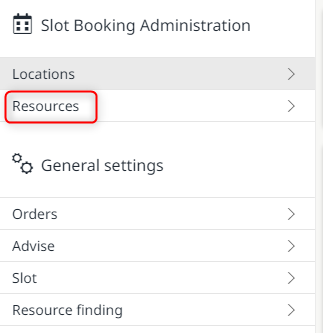
Selection of resources in the slot booking administration
All currently available resources are now listed in the worklist in the Resources area. Now select the team for which you want to set or change the cutoff time by clicking on it.
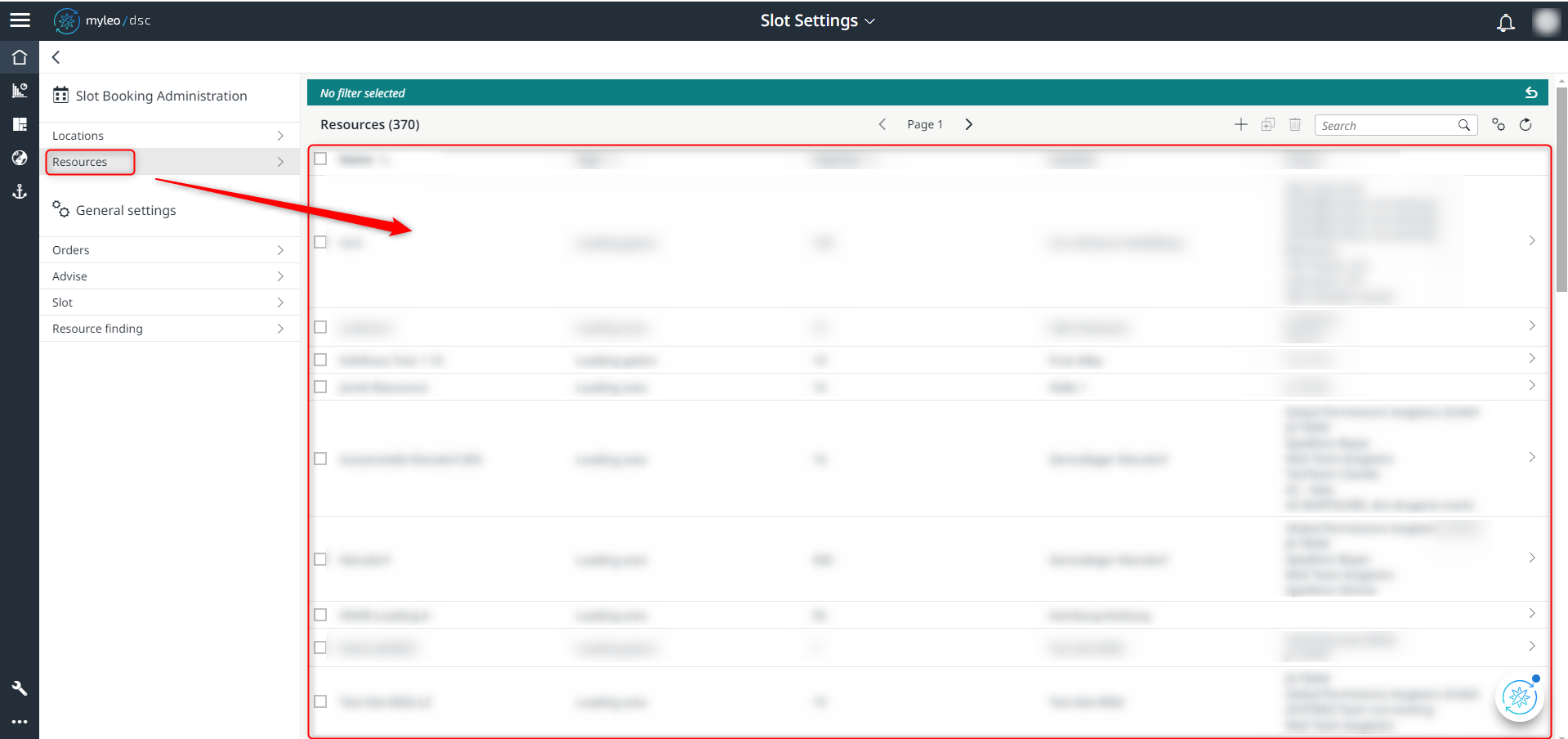
Select a resource from the worklist
Now click on the Teams tab within the detailed view of the resource.
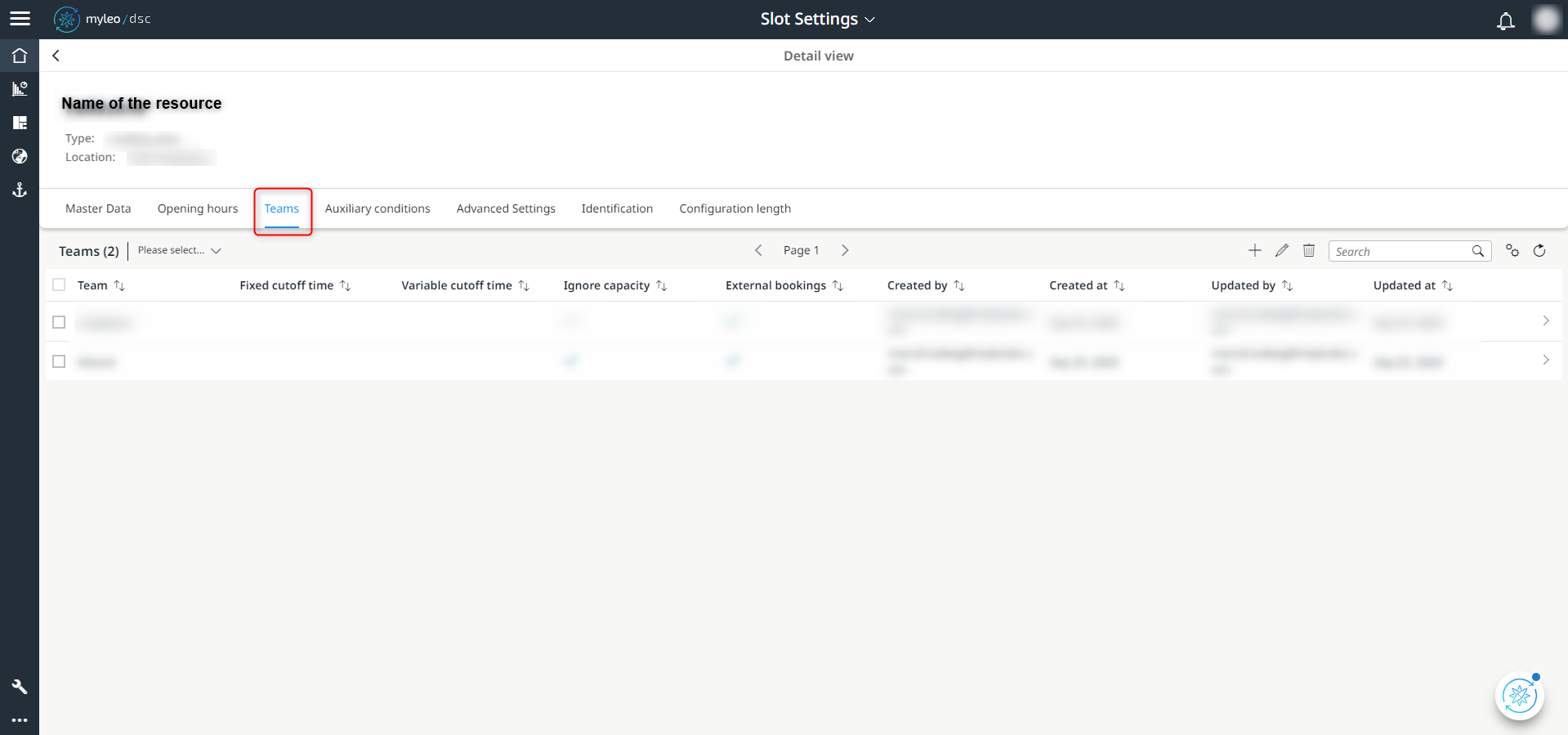
Selection of the "Teams" tab within the detailed view of the resource
Now select the team from the worklist for which you want to set the cutoff time. To do this, tick the relevant checkbox (1).
Then click on the Edit-Button (2).
Clicking directly on a team takes you directly to the Teams app.

Selection of the respective team for processing
The Edit teams window opens. You have several options within this window:
| Felder | Beschreibung |
|---|---|
| Cutoff time | Activating the cutoff time To set the cutoff time, the checkbox must be activated. |
| Variable cutoff time (units) | Setting the time unit of the cutoff time |
| Variable cutoff time (values) | Input of the value of the variable cutoff time Example: A booking on 25.03. 12:00 am, the variable cutoff time is 13h. The latest time for the input is _24.03. 11::00 pm |
| Fixed cutoff time | A fixed cutoff time is set as the time Note: A variable cutoff time can be created without a fixed cutoff time, but not vice versa. |
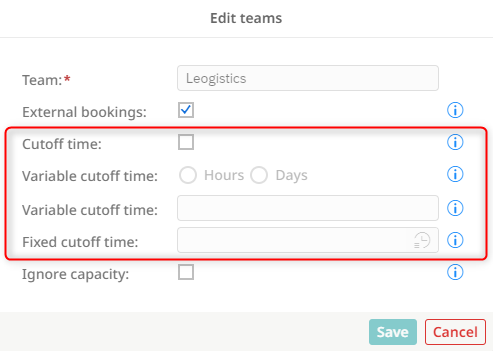
Set cutoff time
After entering the values, the Save-Button is activated. The changes are saved after clicking.
When creating a new team using the Add-Button (+), the procedure for setting the cutoff time is identical.
Set cutoff time across teams in a resource
To set the cutoff time across teams within a resource, first click on the Slot Settings app.
Open the Slot Settings app
Then select the Resources section in the Slot Booking Administration menu on the left-hand side.
Selection of resources in the slot booking administration
All currently available resources are now listed in the worklist in the Resources area. Now select the team for which you want to set or change the cutoff time by clicking on it.
Select a resource from the worklist
In the detailed view of the resource, click on the Configuration length tab.
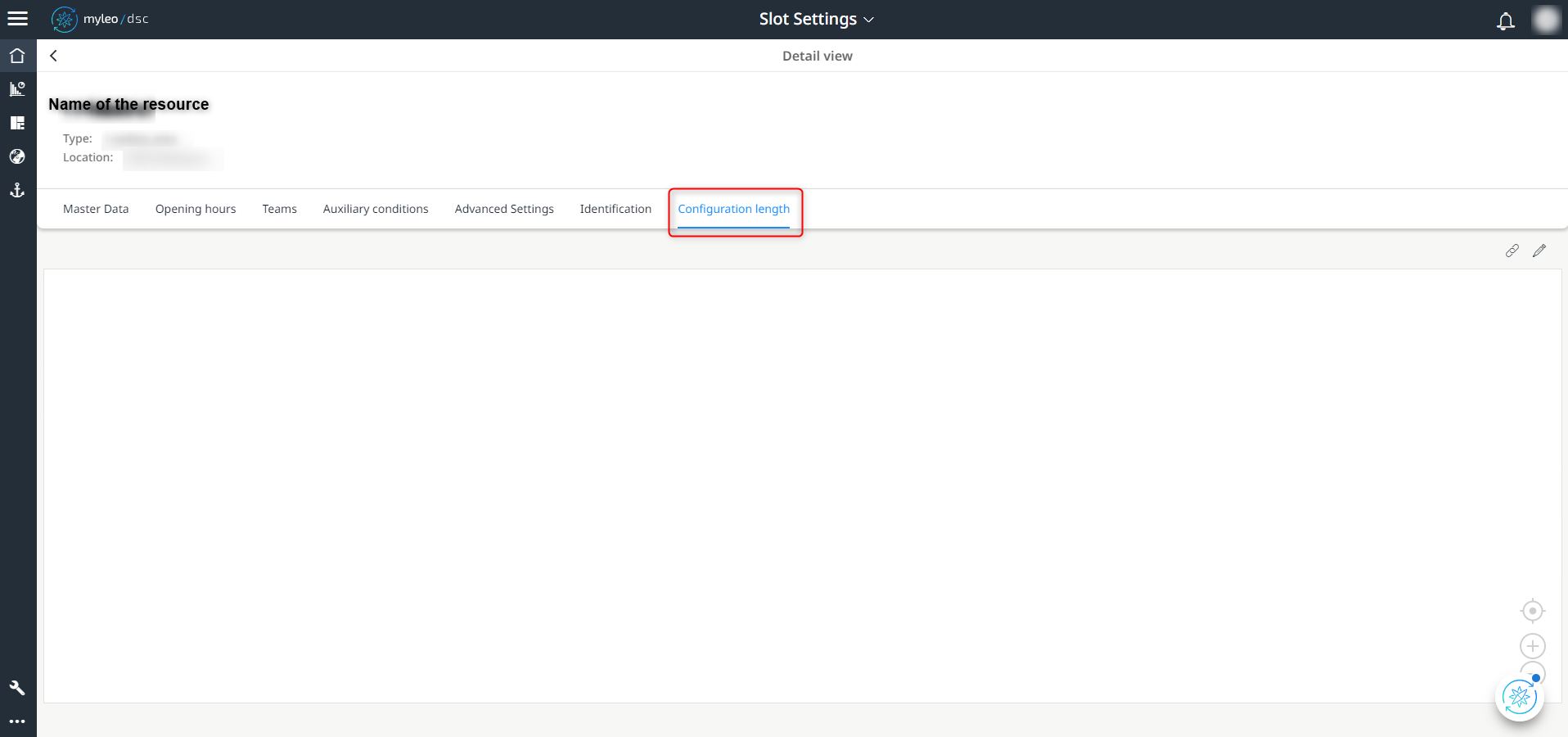
Selection of the "Configuration length" tab within the detailed view of the resource
Klicke anschließend auf den Bearbeitungs-Button mit Stift-Symbol.
Then click on the Edit button with pencil icon.

Edit-Button
Select the following modules from the menu on the left:
| Category | Modules |
|---|---|
| Outputs | 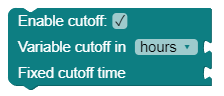 |
| Helper | 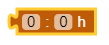 |
| Math |  |
Assemble the modules as follows:
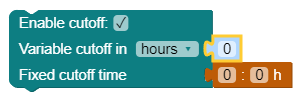
Configuration
Now enter the desired values, which then apply across teams within the resource.
| Felder | Beschreibung |
|---|---|
| Cutoff time | Activating the cutoff time To set the cutoff time, the checkbox must be activated. |
| Variable cutoff time (units) | Setting the time unit of the cutoff time |
| Variable cutoff time (values) | Input of the value of the variable cutoff time Example: A booking on 25.03. 12:00 am, the variable cutoff time is 13h. The latest time for the input is _24.03. 11::00 pm |
| Fixed cutoff time | A fixed cutoff time is set as the time Note: A variable cutoff time can be created without a fixed cutoff time, but not vice versa. |
After entering the values, the Save-Button is activated. The changes are saved after clicking.
Updated over 1 year ago